No Manual Editing
Skip manual touch-ups and let the tool handle the whole image in one automatic pass.
Sharpen an already-focused image for publishing by tightening edges softened during resizing or export. Use it when the dimensions are right and visible detail is still present, so edges and fine details come through more clearly.
Drop an image to sharpen


Prepare listing thumbnails, resized screenshots, and exported graphics for their real display size.
A product photo can look sharp at full size but turn soft when reduced to a marketplace thumbnail. Sharpen the version you plan to publish so packaging edges, jewelry shapes, and small logos stay clear at the size shoppers will see.
Documentation and support screenshots can make menus, error messages, and fine print look soft after resizing. The tool sharpens text that is already readable, helping labels keep their shape without claiming to restore characters that have blurred together.
Exporting a graphic can soften thin lines and make nearby colors seem to bleed together. Sharpening makes the existing edges in icons, logos, diagrams, and line art look cleaner on slides and web pages without redrawing the artwork.
Finish the crop and resize first, upload that version, then inspect the whole-image result before downloading a PNG.
Sign in and upload the JPG, PNG, or WebP you have already cropped and resized for its destination, up to 20 MB and 36 MP.

The tool strengthens existing edges across the entire image, so you do not need to make manual edits.
Move the before-and-after slider over lettering, borders, and fine patterns. When the result looks right, download it.
Use a simple workflow built for mildly soft images, with clear results you can inspect for yourself.

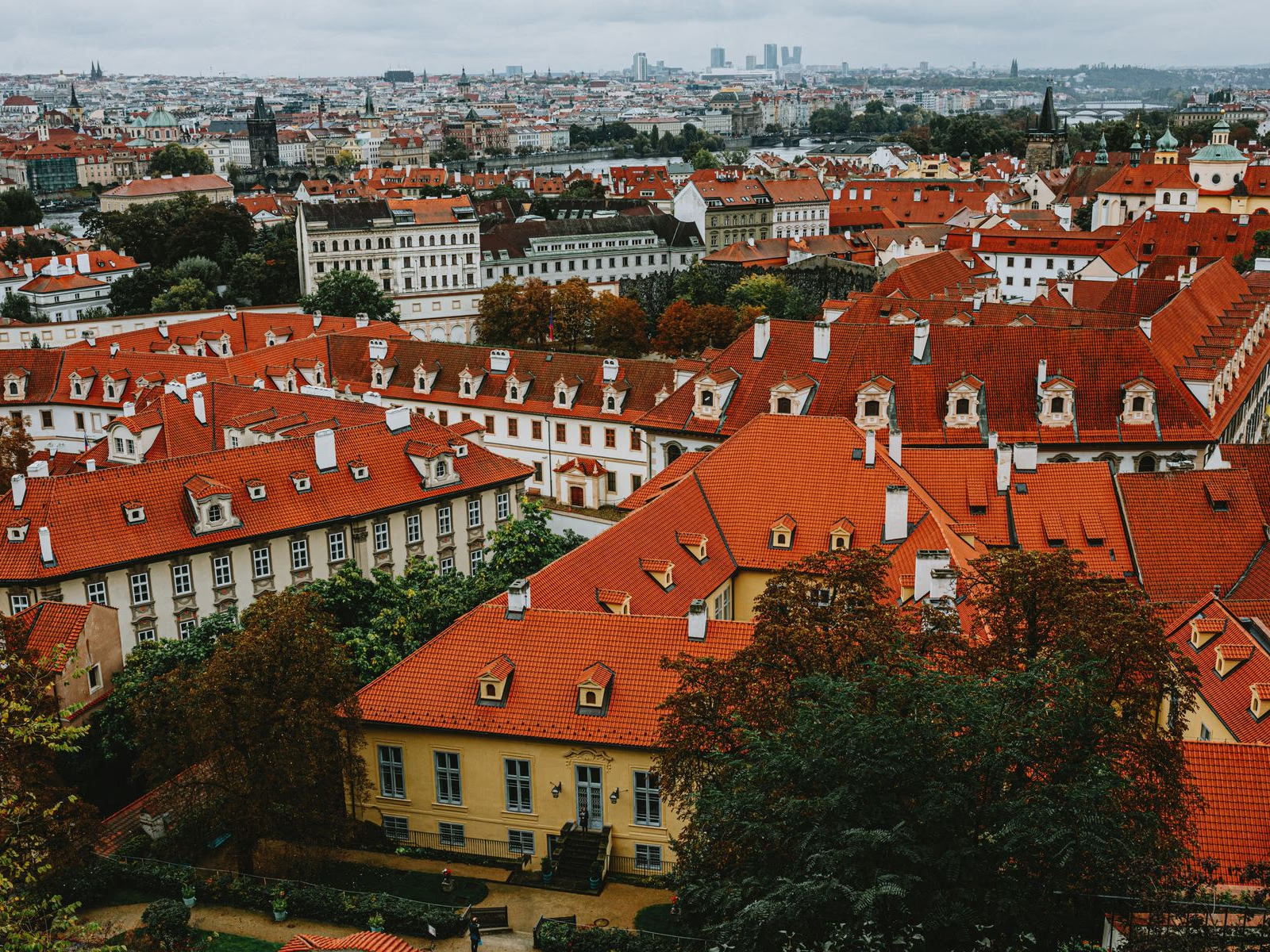
Skip manual touch-ups and let the tool handle the whole image in one automatic pass.
Bring existing outlines, lettering, and fine texture into clearer view while working with the detail already present.
Use the before-and-after slider to inspect the sharpened result and decide whether it is ready to save.
Add definition to soft edges while keeping the overall image from looking heavily filtered or overprocessed.
Understand results, file limits, related tools, and how your upload is handled.